
How to migrate from Salesforce to GoHighLevel
Follow a tested Salesforce-to-GoHighLevel migration, from matching accounts and contacts to rebuilding a workflow and checking every deal. Includes field mappings and screenshots.
A Salesforce deal can belong to an account with several contacts. In GoHighLevel, an opportunity needs a contact. Identify the deal’s primary buyer before you export. If two buyers work at Northline Studio, a join on the company name alone can attach a proposal to the wrong person or count its value twice. HighLevel opportunity import guide
On 23 November 2026, we migrated a sales team from Salesforce Free Suite into an existing HighLevel sub-account. Four Salesforce contacts and one unconverted lead became five HighLevel contacts. Three accounts became three companies. All four deals kept their primary buyer, owner, close date and value. On both platforms, moving the same test deal into the proposal stage created a next-day review task.
1. Define what you’re moving
Start with one sales pipeline. List the objects its team uses, who owns each one, which fields they rely on, and what happens when a deal changes stage. Record the Salesforce edition as well. Free Suite includes accounts, contacts, leads, opportunities, cases, tasks, reports and limited Flow automation. A larger org may also depend on custom objects, integrations or commerce features that need their own migration decisions. Salesforce edition comparison
| Salesforce item | GoHighLevel destination | Decision to make |
|---|---|---|
| Account | Company | Keep the Salesforce account ID. Decide how to represent parent accounts and multiple contacts. |
| Contact and unconverted Lead | Contact | Preserve the source object, ID, lead status, owner and communication preferences. For converted leads, use the conversion link to avoid creating the same person twice. |
| Opportunity and Opportunity Contact Roles | Opportunity linked to a contact | Use the primary role where present. Queue deals with ambiguous or missing contacts for the sales owner. Preserve additional roles separately. |
| Task, case, note, file and activity history | Recreated open work or linked archive | Assign open items to an owner. Keep timestamps, authors, parent IDs and attachments together for historical records. |
| Flow, email template, report and dashboard | Workflow, template or rebuilt report | Document enrollment rules, waits, branches, merge fields and reporting filters. Test the business outcome after rebuilding. |
2. Export records and retain the relationships
Run a Salesforce report for each object with filters that cover all intended owners, dates and statuses. Include the record IDs and foreign keys alongside the human-readable names. Where your edition and permissions expose report export, open the report’s action menu and choose Export → Details Only → CSV. When an export option is missing, check the edition and Export Reports permission. For a small Free Suite pilot, you can also transcribe the records into a worksheet and check each row against the original. The Free Suite org in this walkthrough exposed the native report export, which we verified with the case report below. Salesforce report export instructions
Keep one original copy of each export. Join opportunities to contact roles using Opportunity ID, then to contacts using Contact ID. Link the account separately by Account ID. Make a table with the source ID, destination ID and migration result for each record. Use it for retries, especially when a single person has two deals. Preserve original close dates, the currency code and owner IDs even if part of the first import needs manual mapping.
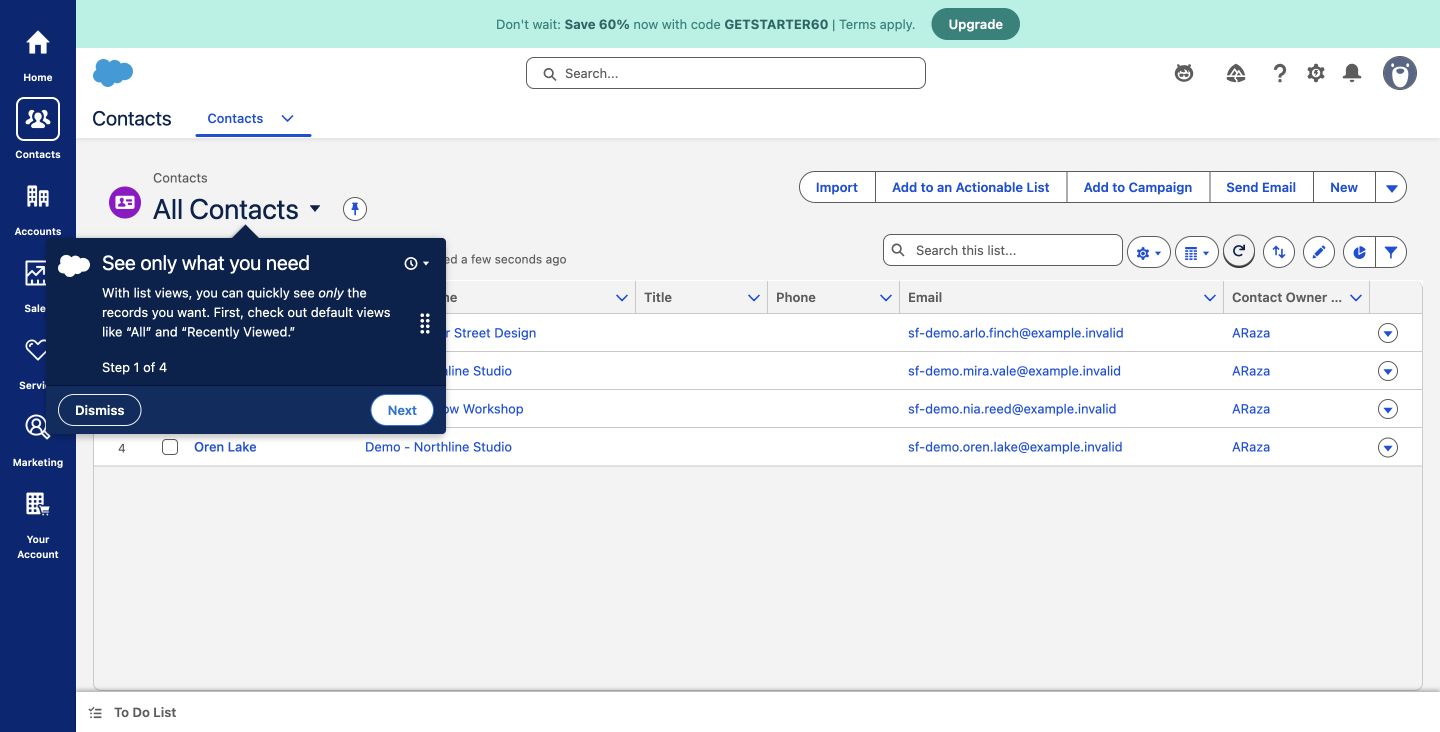
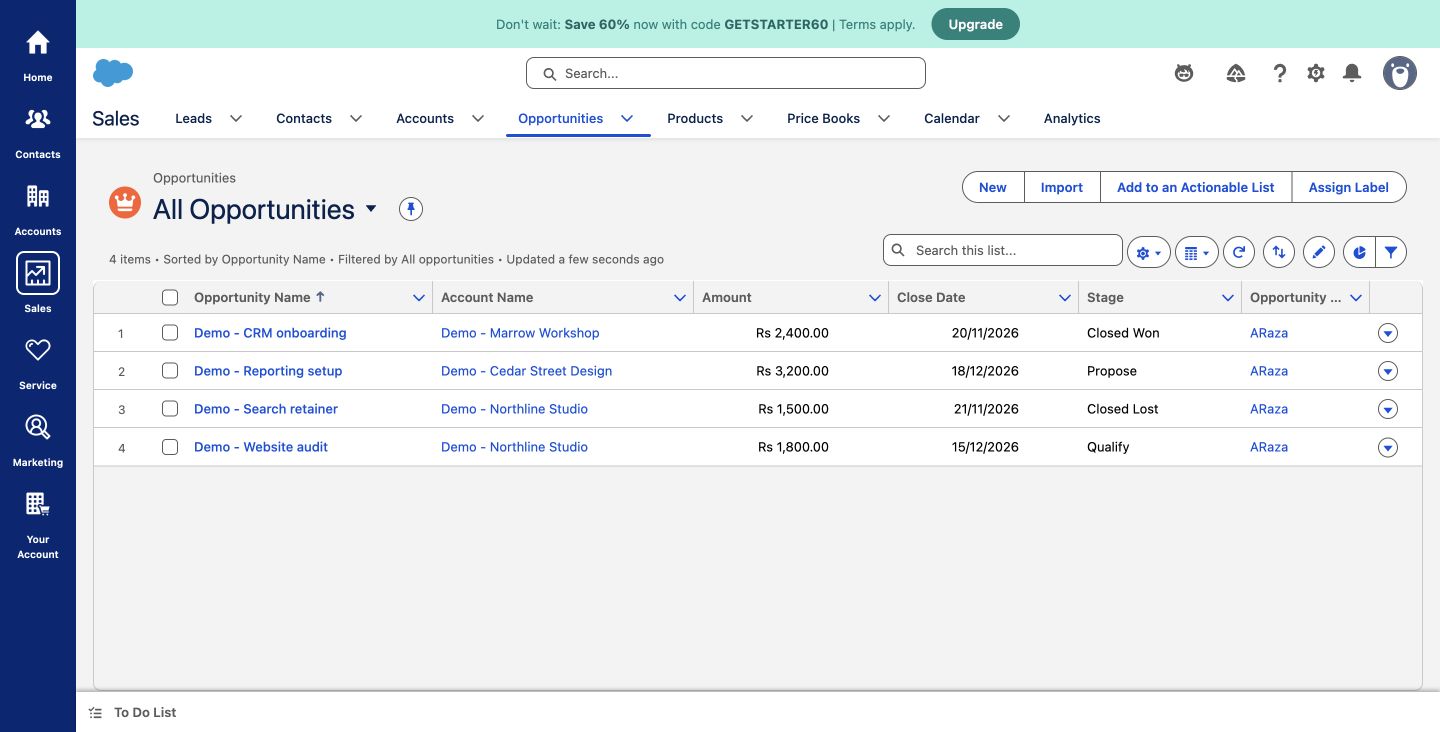
For this small run, we imported four contacts into Salesforce. Its contact wizard matched all five source columns, including Account Name and Email Opt Out. The resulting list contained four people with three distinct account links. We then created four opportunities and one unconverted lead. We recorded the IDs and values directly from the saved Salesforce screens to prepare the HighLevel files. For larger runs, use the report export above.
3. Build the pipeline before importing
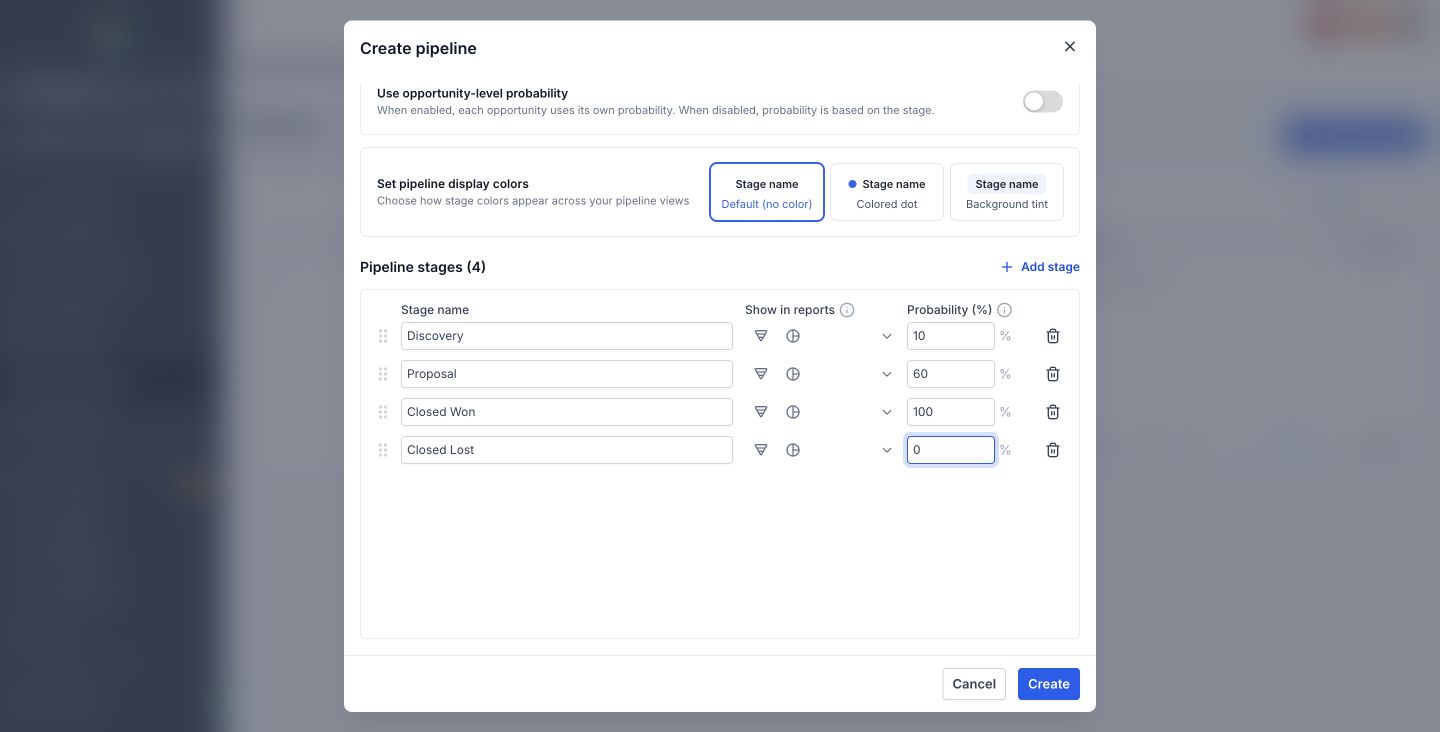
In the target HighLevel sub-account, open Opportunities → Pipelines → Create pipeline. We started with four stages to match the first extract. In the initial extract, the source stage Qualify maps to Discovery / Open, Propose to Proposal / Open, and the two closed outcomes to Closed Won / Won and Closed Lost / Lost. A stage controls the position on the board. Status determines whether the deal counts as open, won or lost. Check both on each closed record. HighLevel pipeline setup · Opportunity statuses
Create destination custom fields on the right object before uploading. A Salesforce Contact ID belongs on the contact. A Salesforce Opportunity ID and original close date belong on the deal. If two source accounts share a trading name, resolve them by ID before using HighLevel’s Business Name matching. Its automatic company association can affect existing contacts throughout the sub-account when enabled. A standalone Company import needs a separate association step. HighLevel company association · Company CSV import
4. Choose an import path
In the workspace used for this walkthrough, the path was Contacts → Import → Start CSV import. For new people with deals, select Contacts and Opportunities together. Put each opportunity and its intended primary contact on the same row. Import people without deals in a contacts-only batch. When the people already exist, use an opportunities-only file with the HighLevel Contact ID, opportunity name and pipeline. For an update to an existing deal, include its HighLevel Opportunity ID. HighLevel CSV import guide · Opportunity import requirements
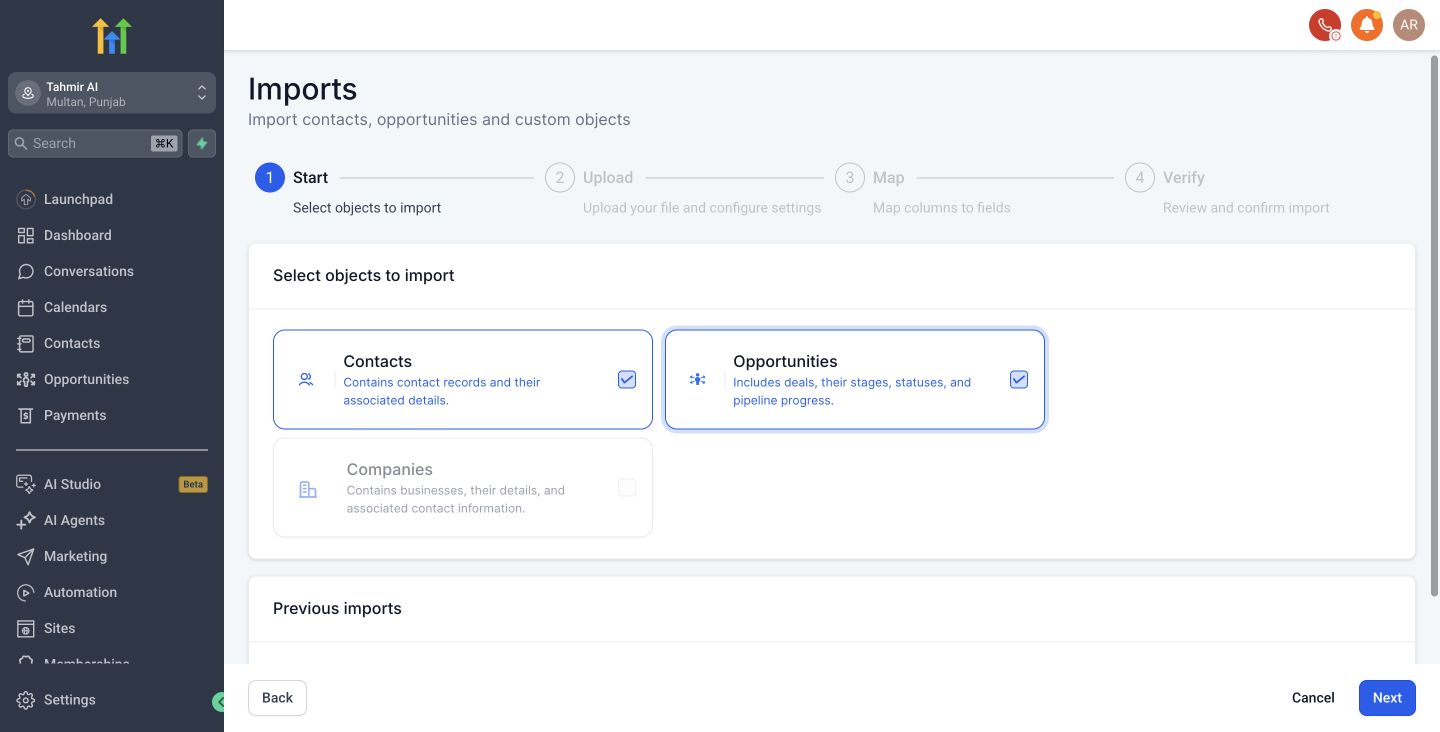
Choose the import mode deliberately. Create suits a new batch whose identifiers you have checked. For a retry, download the failures, compare the successful records with your ID table, and retry only the outstanding rows. Use the empty-value setting carefully when updating existing contacts. Review each field’s sample values and destination object, including the fields the importer matches automatically. HighLevel contact import settings
With our four-row sample, HighLevel recognized ten of eleven columns. Opportunity Status was the exception. Selecting the opportunity’s Status field preserved the intended open, won and lost values in the mapping preview.
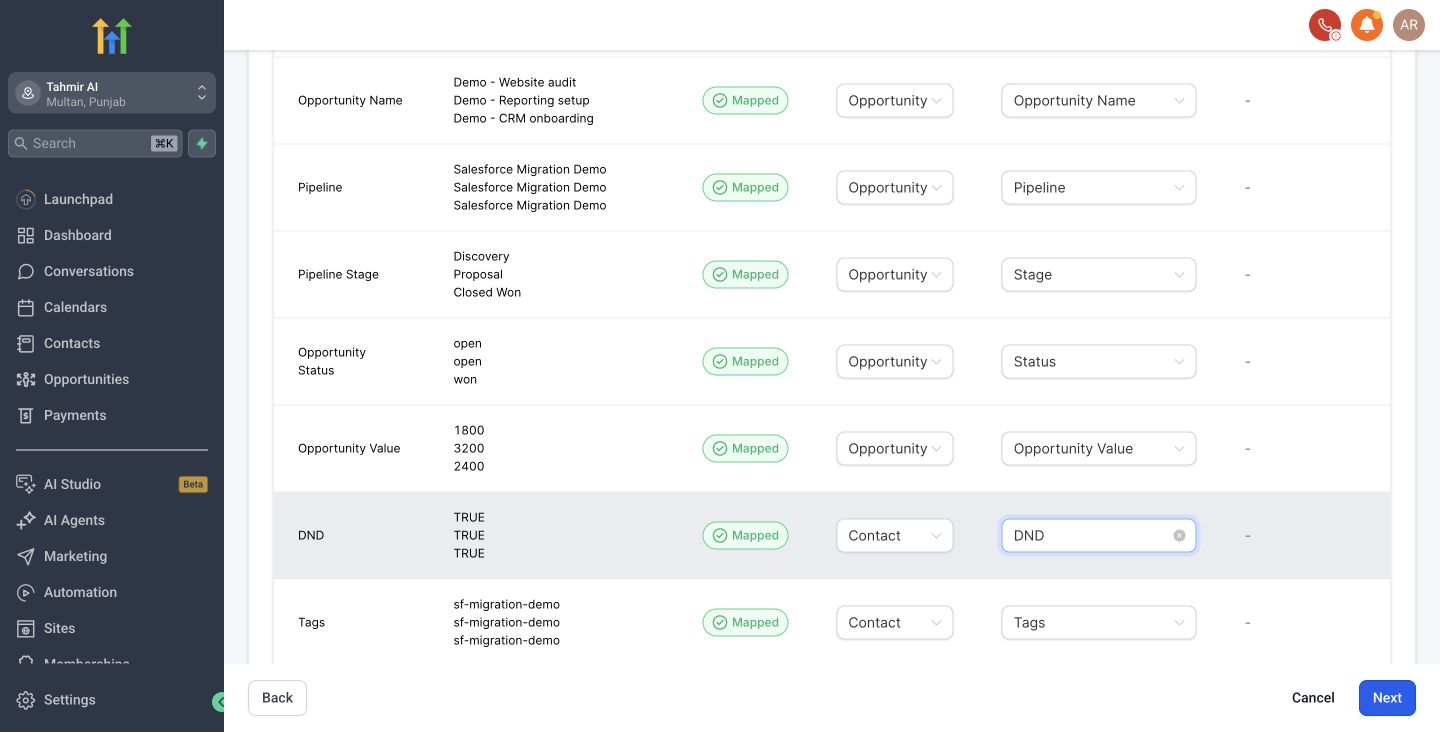
Before starting the job, read the consent declaration. The combined importer in this walkthrough required prior contact and permission to communicate. Records cannot meet that declaration. For a demo, create the contacts directly and use internal tasks for the automation test. For a customer migration, bring over opt-outs and their evidence. HighLevel’s CSV DND field suppresses every channel. An email-only opt-out needs an email-specific DND setting or a scoped workflow. HighLevel bulk-import troubleshooting
How we completed the import with records
- We created the five people with DND all channels enabled, then recorded the HighLevel ID from each contact. The unconverted Salesforce lead became a HighLevel contact with type Lead and no deal. Its source field retains the Salesforce lead ID and status.
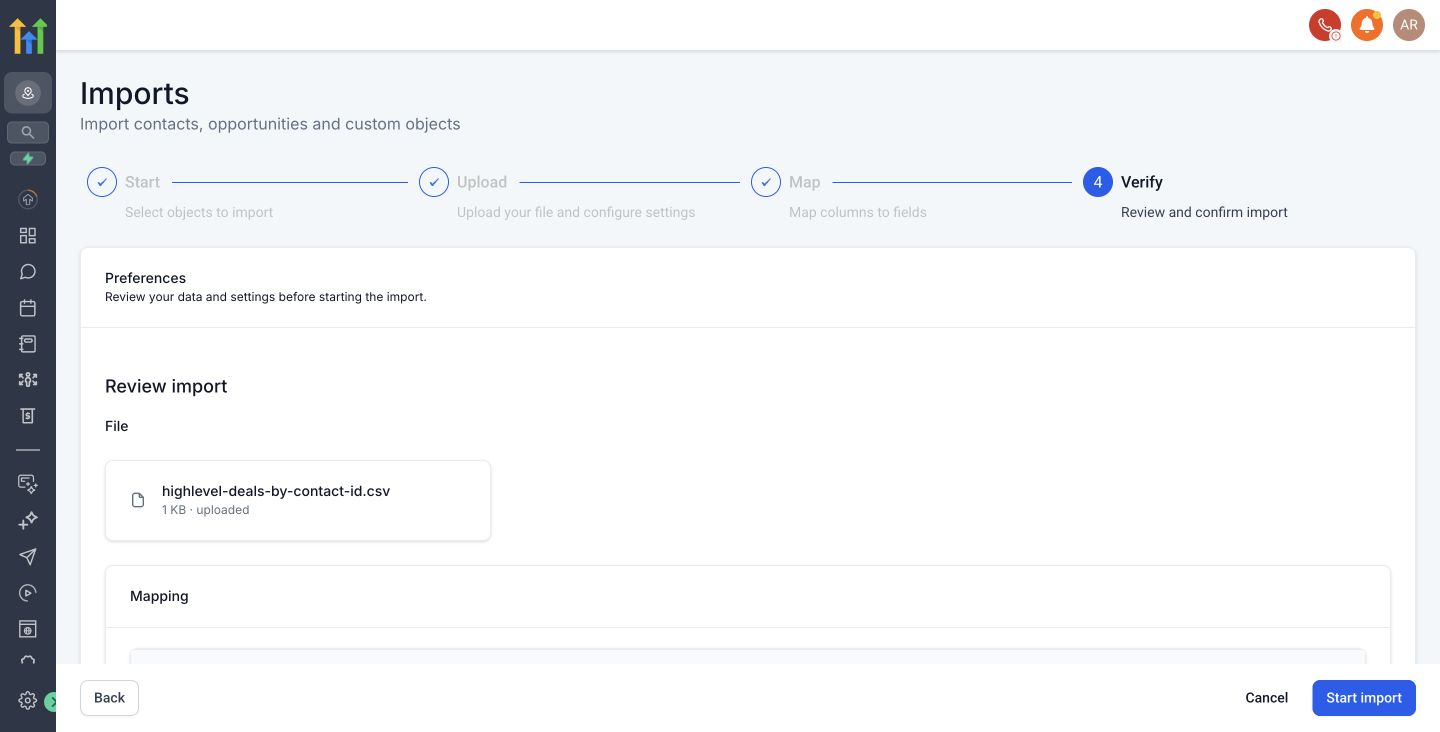
- From Opportunities → Import → Start CSV import, we selected Opportunities alone. We joined four Salesforce opportunities to their buyers’ new HighLevel IDs. The seven-column CSV included Contact ID, Opportunity Name, Pipeline, Stage, Status, Opportunity Value and Expected Close Date. We used Create new opportunities and manually selected Expected Close Date in the field mapper. The deal-only review screen accepted this file.
- We watched the job in Bulk Actions until it showed Complete. We then opened each imported opportunity, verified the close date, assigned the original owner and filled in the business name and migration source. A completed job alone would have missed a wrong contact or currency.
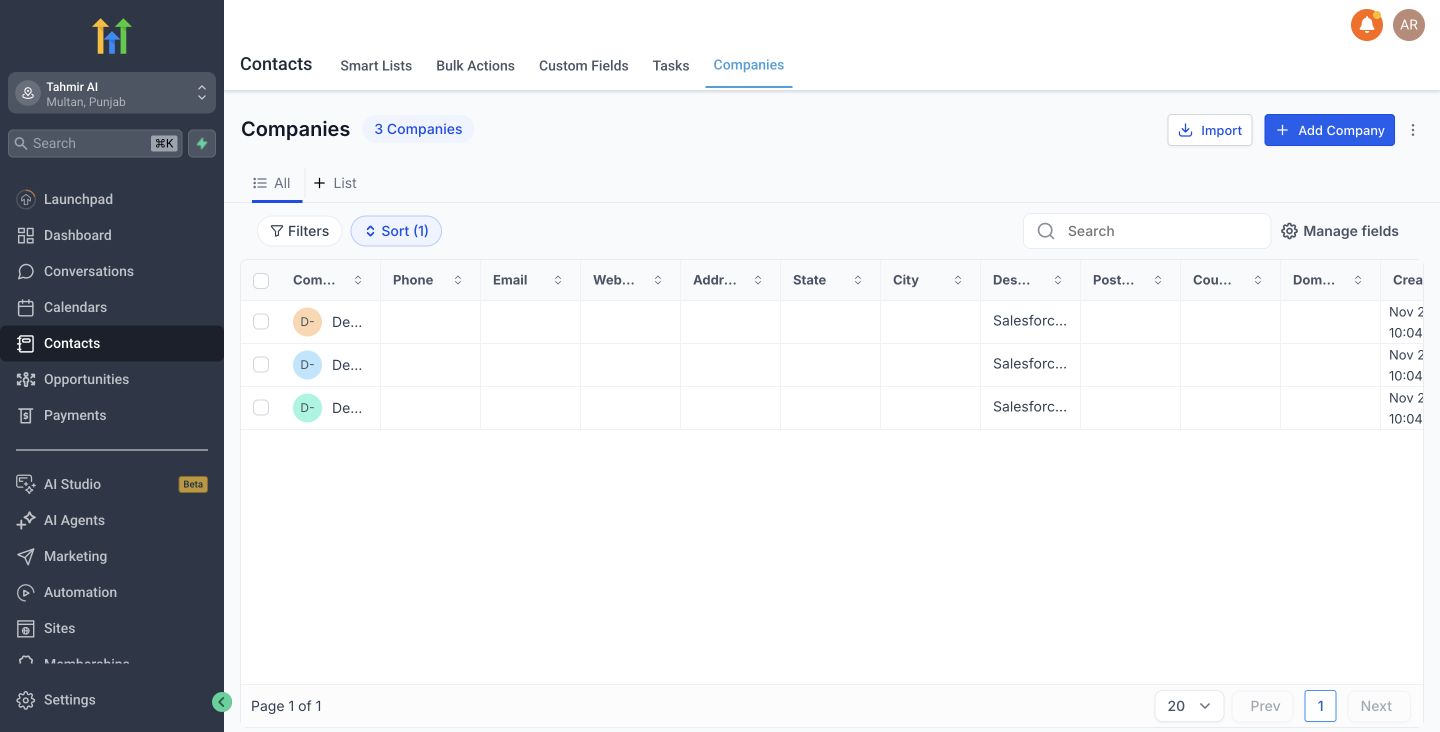
- We opened Contacts → Companies → Import and used a separate companies-only CSV. We mapped the name and a description containing the original Salesforce Account ID. The Companies list showed all three records. We then selected the buyers in Contacts → More → Manage companies → Add/Update primary company. One job assigned both Northline contacts to Northline Studio. Two single-contact jobs assigned the Cedar Street and Marrow buyers. All three jobs reached Complete. This preserved the shared-company relationship without changing company-matching settings for the rest of the workspace.

5. Rebuild one automation and test its boundary
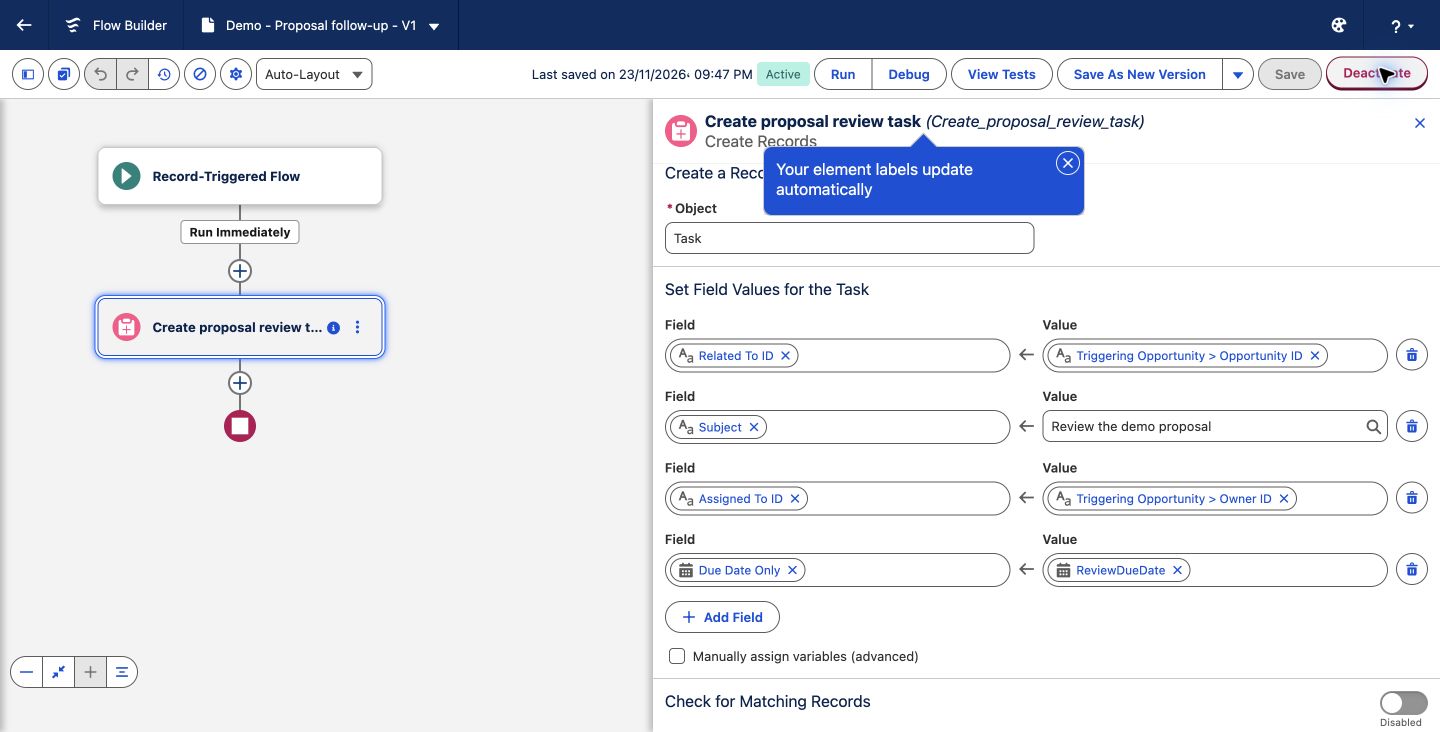
In Salesforce we built an after-save record-triggered Flow on Opportunity updates. The name had to start with “Demo – ” and the stage had to become Propose. The Flow created a Task, linked it to the opportunity, copied the opportunity owner and calculated its due date with TODAY() + 1. We activated it and observed the task on the test opportunity.
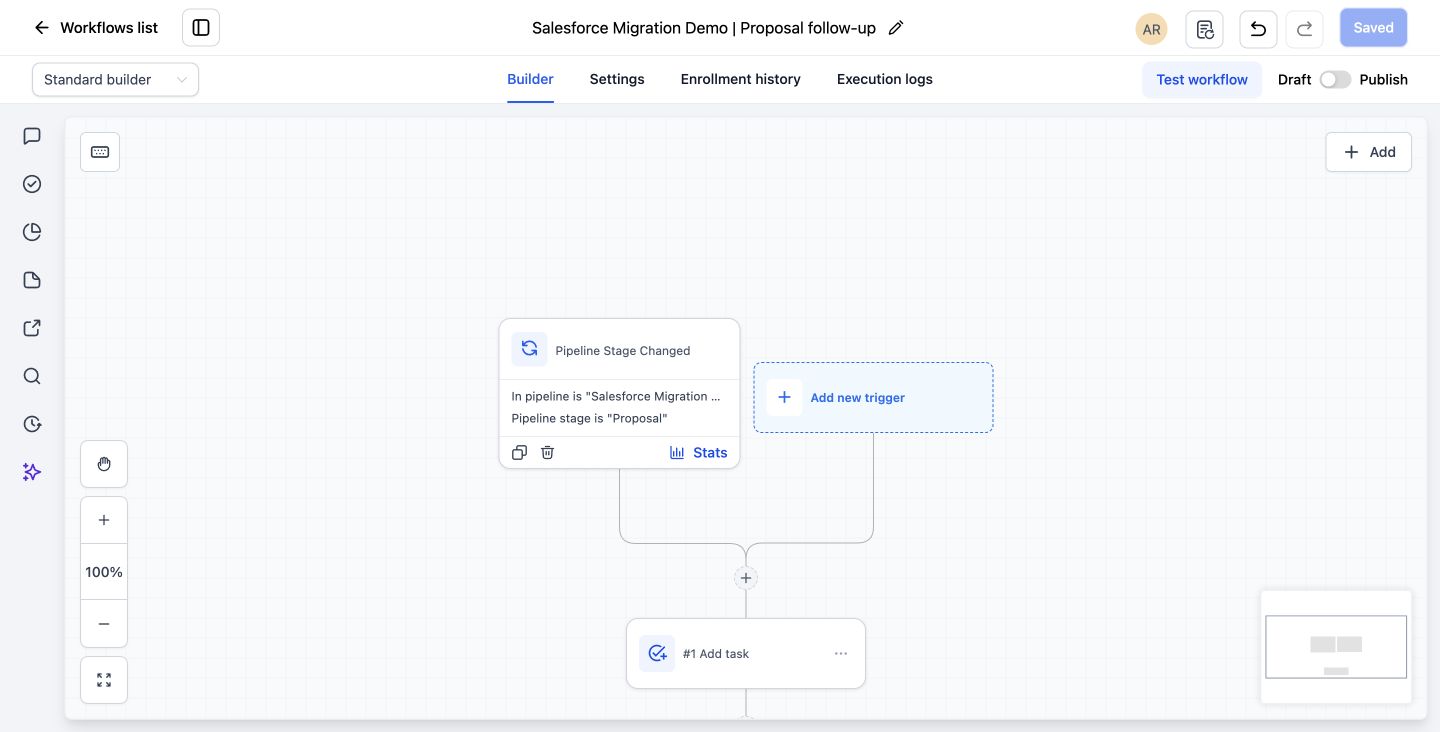
Write the original rule in one sentence. In this example, when a deal enters Proposal, its owner should receive a review task due one day later. In Automation → Workflows, start from scratch, add Pipeline Stage Changed, then filter by the demo pipeline and Proposal. Add Add task, give it a title and description, select the assignee and set the due date to one day. The demo draft uses a named reviewer. For a production migration, decide how each Salesforce owner maps to a HighLevel user. HighLevel stage-change trigger
Move one test deal from Discovery to Proposal after enabling the isolated rule. Check the task title, assignee, due date and workflow execution log. Then edit the deal value without changing its stage and check for an extra task. Also test leaving and re-entering Proposal against the original re-entry policy. If contacts can have several deals, test a second deal for the same person. HighLevel multiple-opportunity workflows
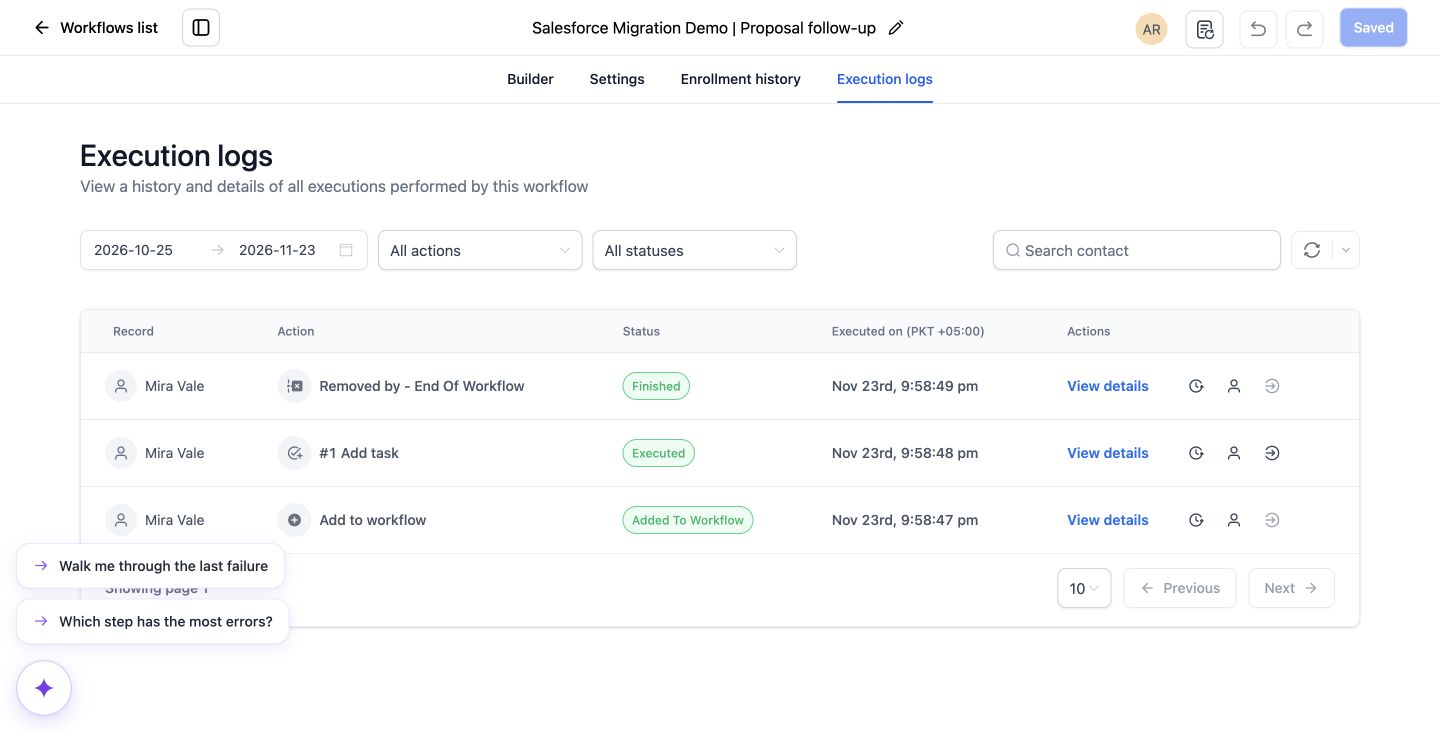
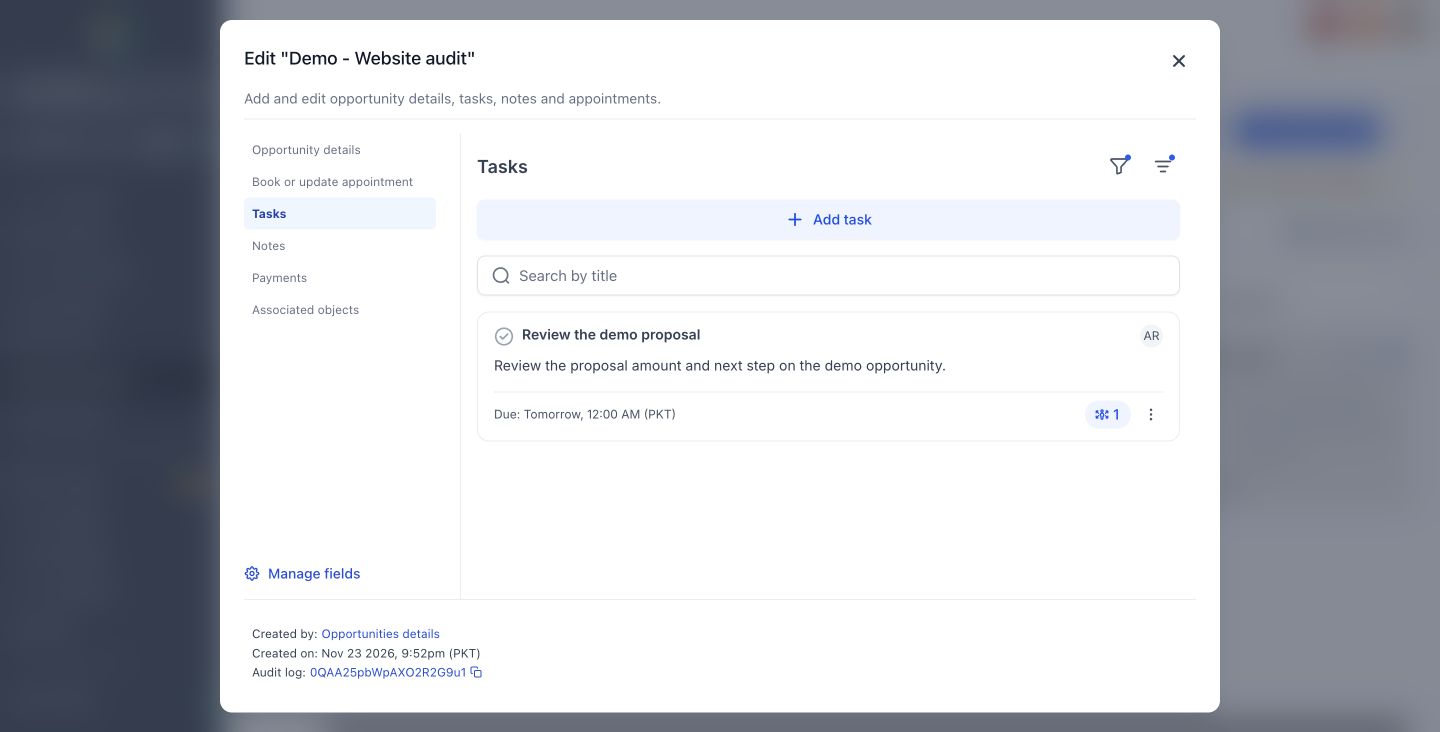
For the live HighLevel test, we briefly published the workflow and moved Demo – Website audit from Discovery to Proposal. The execution log recorded Add task → Executed for Mira Vale. The deal showed Review the demo proposal, assigned to the reviewer and due the following day at midnight in the sub-account’s Pakistan time zone. We restored the deal to Discovery and returned the HighLevel workflow to draft. The source Flow remains active for the demo opportunities.
6. Move the work around the deal
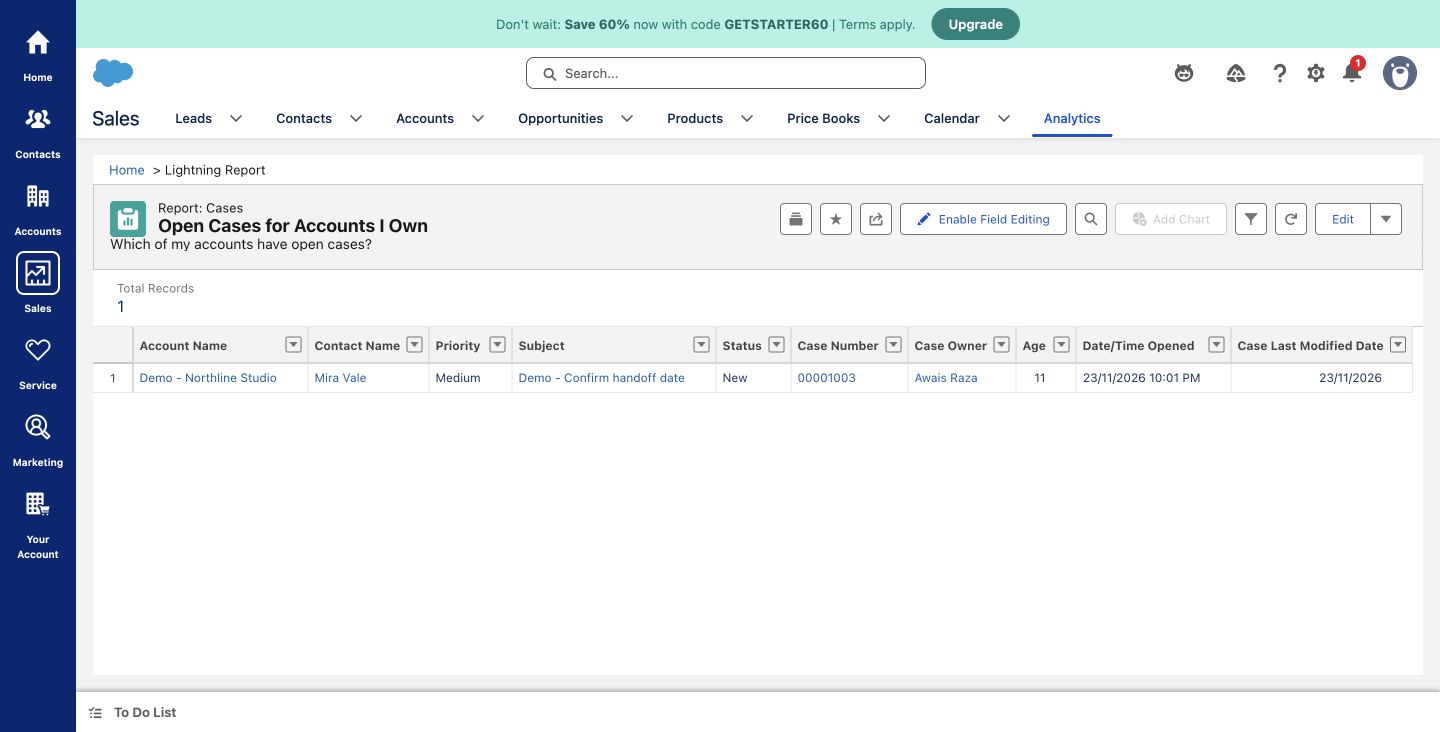
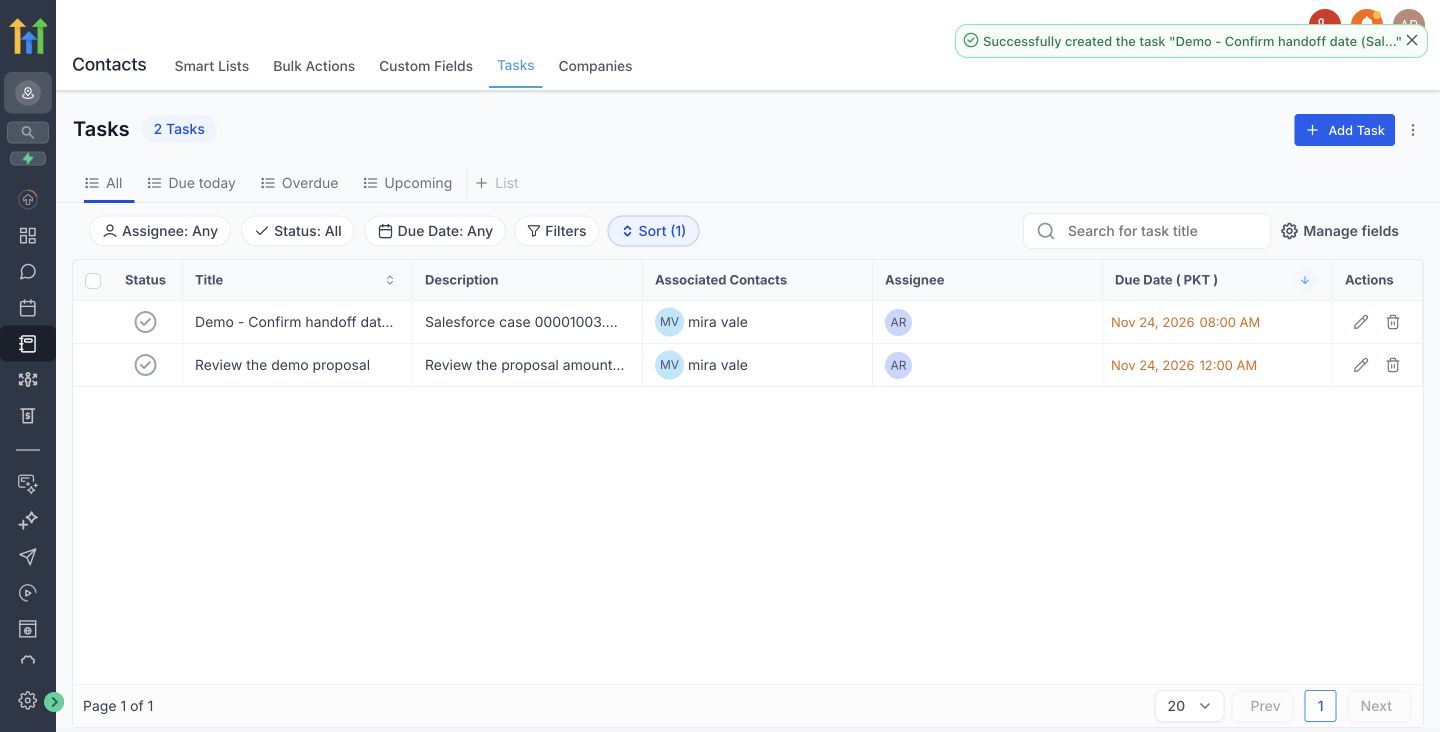
Our service example began with a Salesforce case for Mira Vale, 00001003, about confirming an audit handoff. We ran Open Cases for Accounts I Own, exported Details Only → Comma Delimited (.csv) → Unicode (UTF-8), and checked that the file contained one row with status New and priority Medium. In HighLevel Tasks, we created an open task with the case number, original status and priority, the source-record link, Mira as the associated contact, and the same owner. We chose the next morning as the task deadline. A team that depends on case queues, escalation timers or SLAs should map those requirements before moving its service workload.
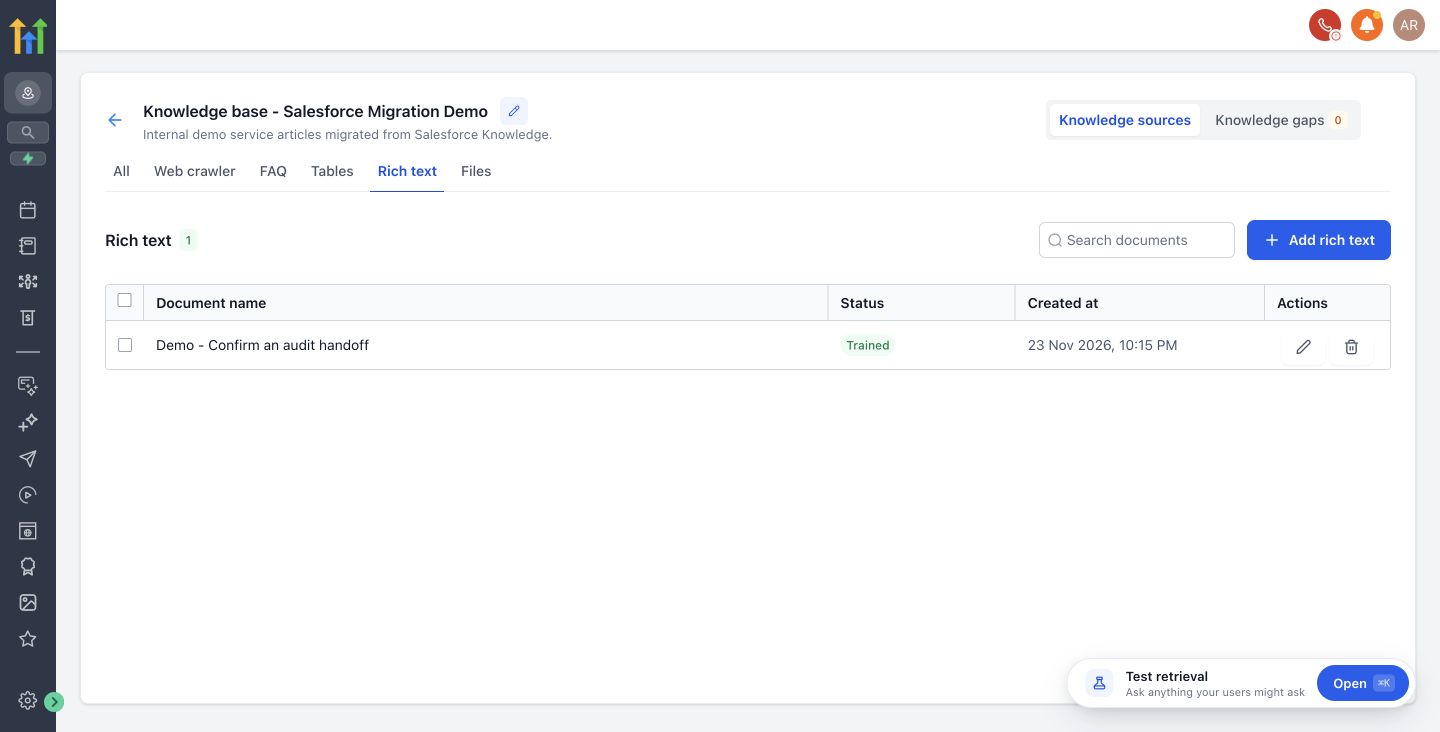
The Salesforce Knowledge draft Demo – Confirm an audit handoff became a rich-text source in a separate HighLevel knowledge base. HighLevel showed Trained after saving it. The base was kept separate from customer-facing agents. For the marketing example, we saved a plain-text Salesforce list email as a draft, then copied its subject and body into Marketing → Snippets → New Snippet → Add Email Snippet. A snippet preserves reusable copy. For a scheduled campaign, separately rebuild the audience, timing and enrollment rules. HighLevel knowledge sources · HighLevel email snippets
Products, prices and calendar events
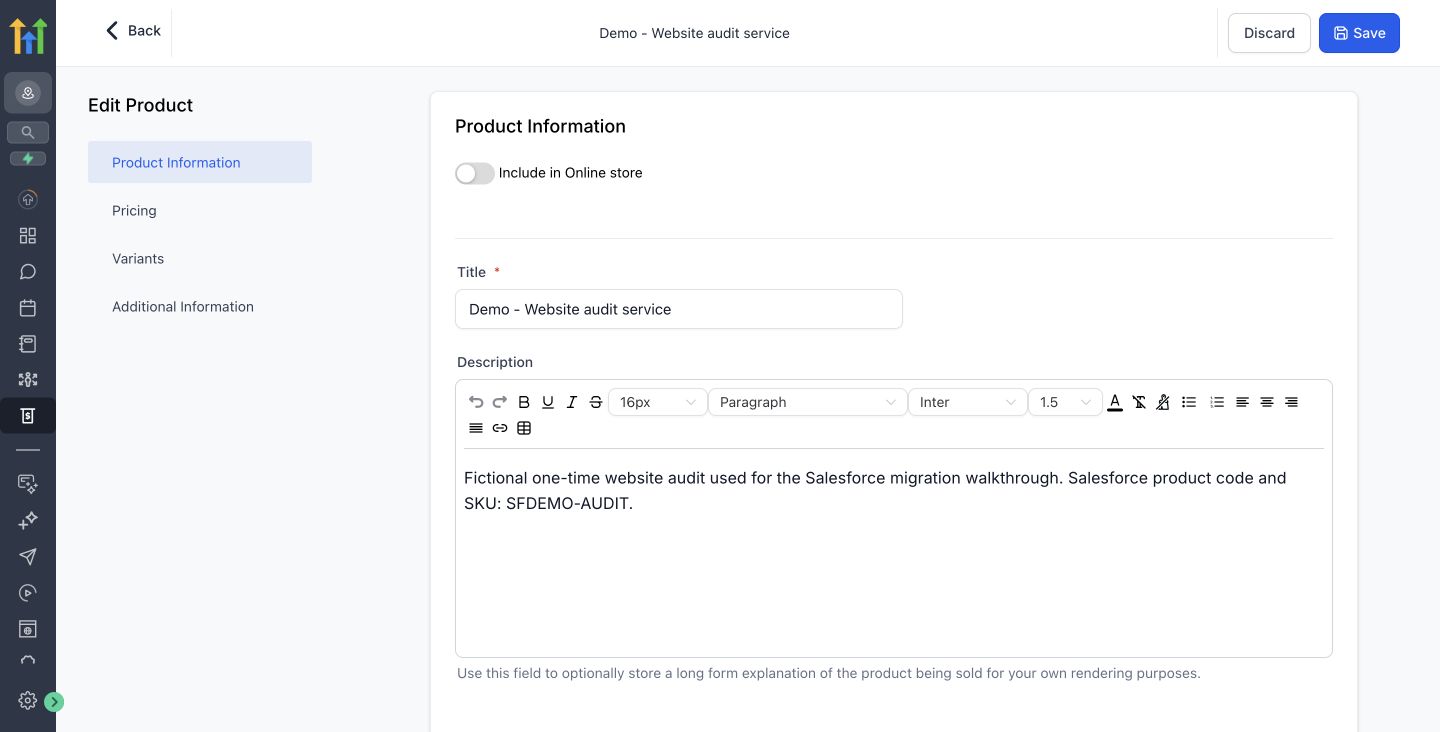
For Demo – Website audit service, we opened Products in Salesforce, saved the product code and SKU SFDEMO-AUDIT, and added a PKR 1,800 list price in the Standard Price Book. In HighLevel, we used Payments → Products → Create Product, chose a one-time PKR 1,800 price, copied the product code into the description and switched off Include in Online Store before saving. This transferred the catalog entry. A team using discounted line items or several price books should also compare the actual prices on its open quotes.
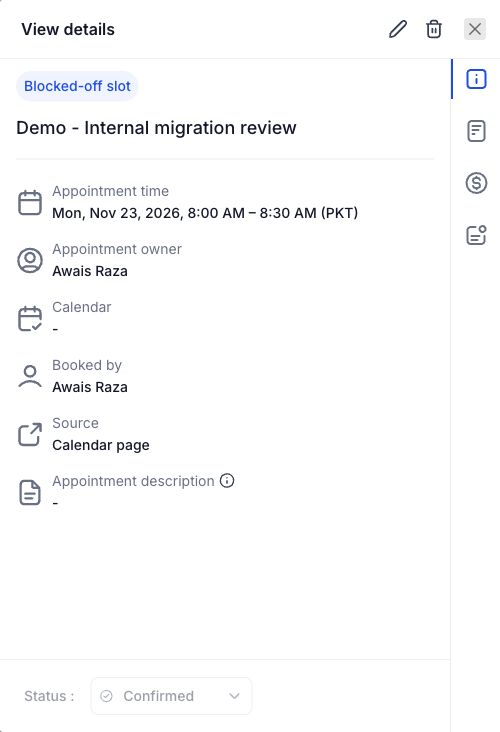
The calendar example had one owner and no attendees. We saved Demo – Internal migration review in Salesforce for 23 November, 8:00–8:30 a.m. Pakistan time. Under Calendars → New → Blocked off time in HighLevel, we recreated the same past half-hour for the owner and verified the date, time zone and title in the saved slot. Use an appointment with the correct contact and calendar when moving a customer booking. Check invitation and reminder settings before importing upcoming appointments.
We could export the Salesforce service report. The built-in dynamic service dashboard returned an access or edition-limit message. The opportunity screen marked Quotes as a paid feature. External mailbox and calendar sync, Slack, live campaign delivery and payment processing were outside this rehearsal.
7. Reconcile before switching the team
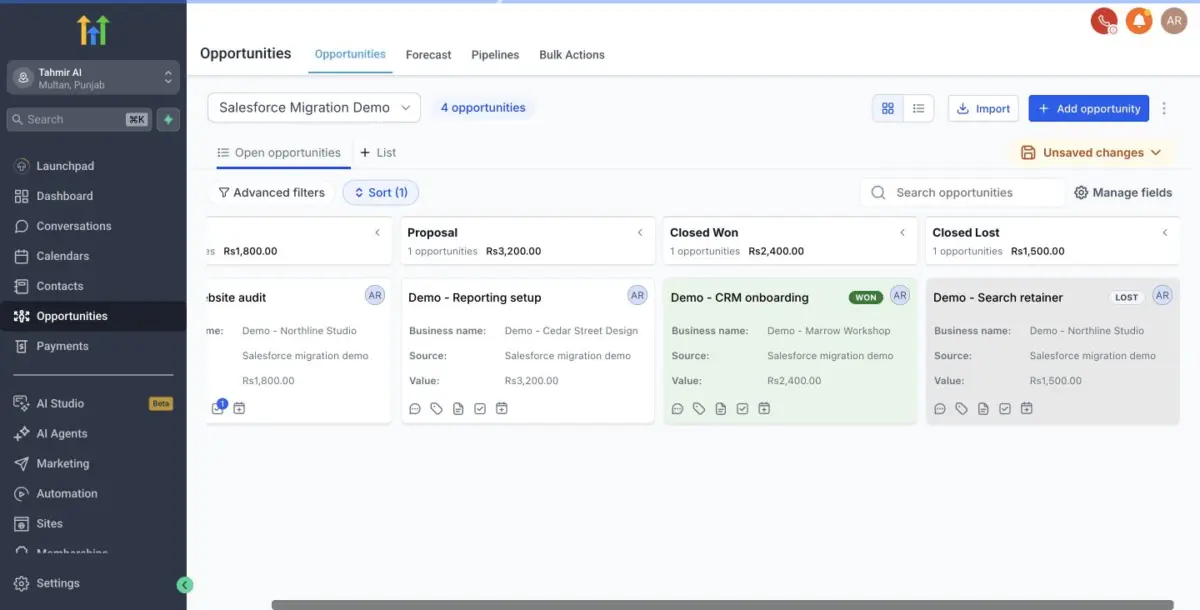
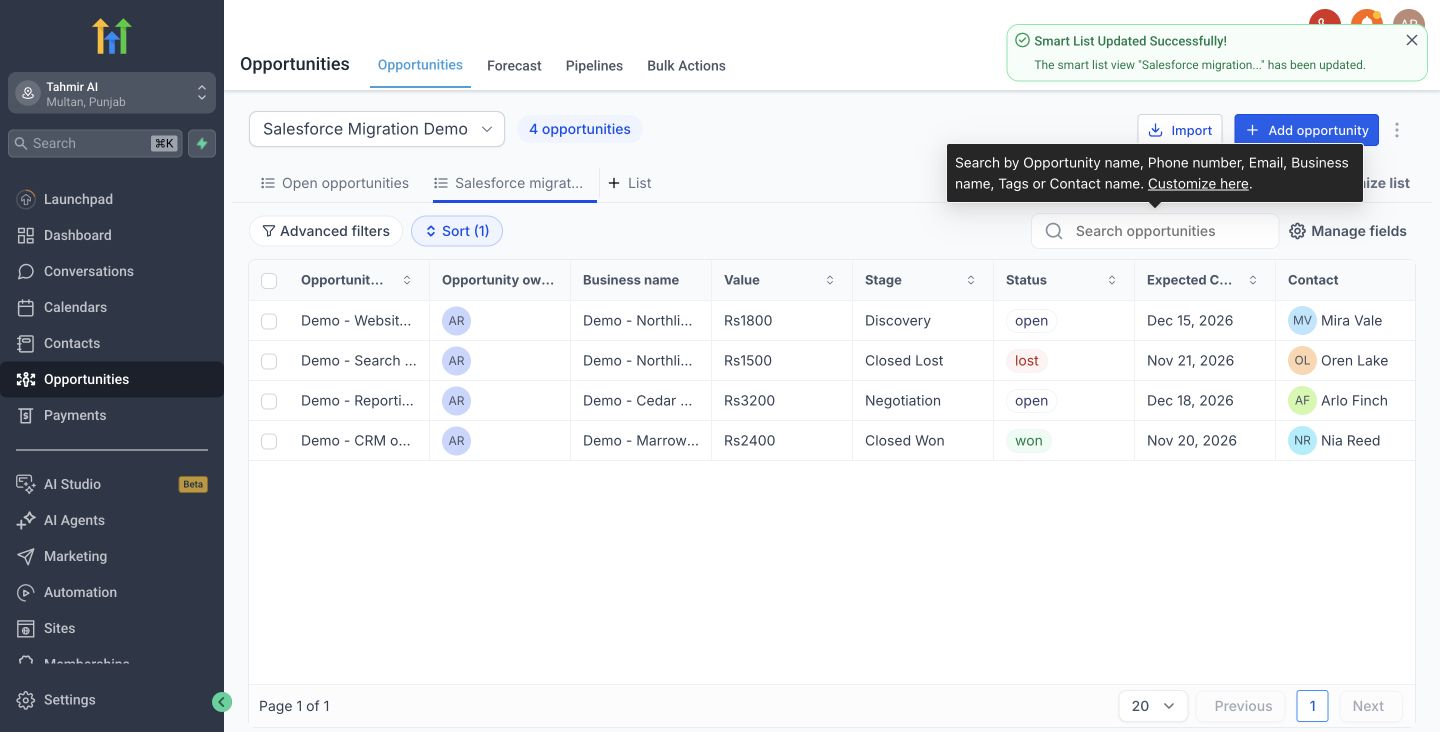
Our first HighLevel board showed only two deals. Its Open opportunities view had an advanced filter on Status. Clearing that filter revealed the won and lost cards. We matched all four buyer IDs and checked all four dates in the destination editor.
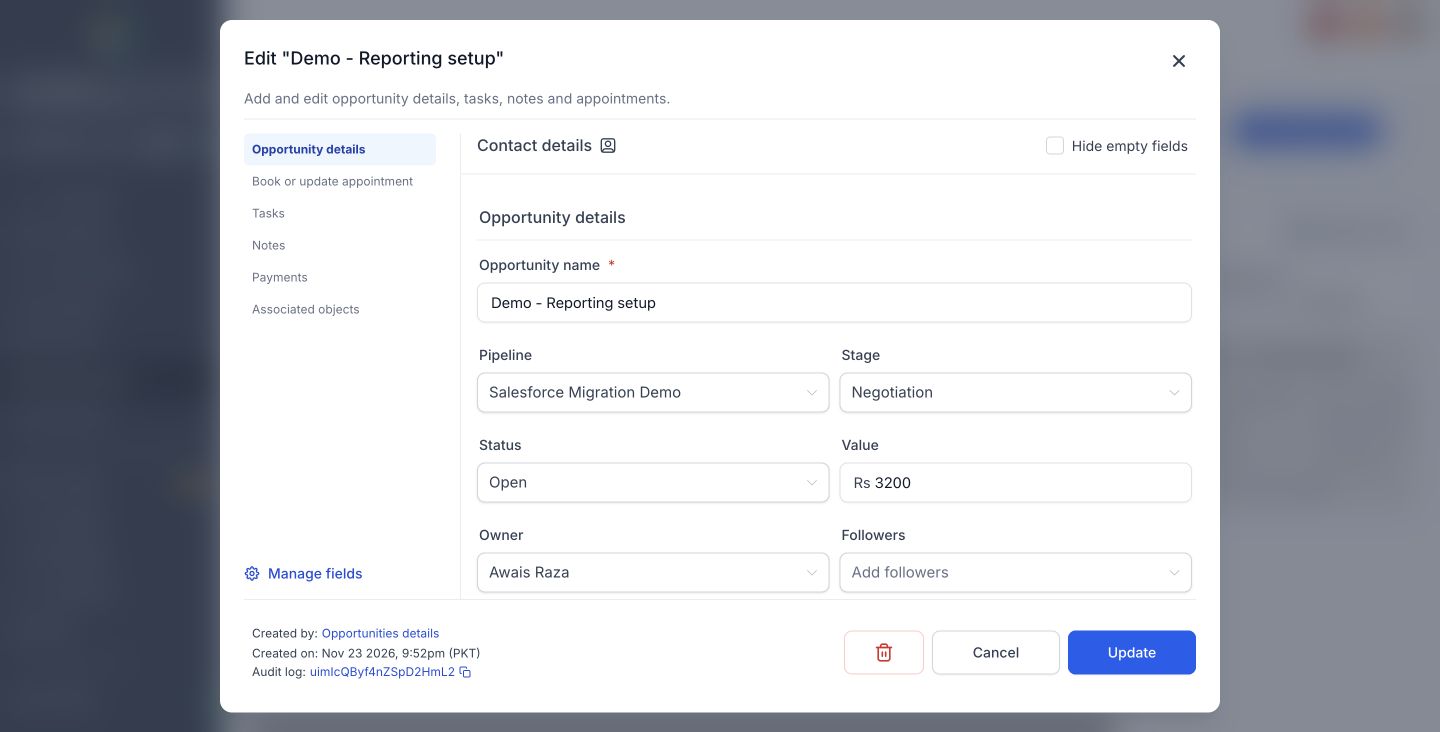
That last comparison caught a change that the import receipt could never show. Demo – Reporting setup was in Propose when we prepared the CSV. After the import, the Salesforce record showed Negotiate with a 75% probability. We added Negotiation at 75% to the demo pipeline and updated the existing HighLevel deal. Its ID, buyer, PKR 3,200 value and 18 December close date stayed the same. We saved a HighLevel opportunity list with stage, status, value, date, owner and contact so the team can repeat the check.
| Deal | Buyer | Salesforce → HighLevel stage | Outcome | Close date | Amount in both CRMs |
|---|---|---|---|---|---|
| Website audit | Mira Vale | Qualify → Discovery | Open | 15 Dec 2026 | PKR 1,800 |
| Reporting setup | Arlo Finch | Negotiate → Negotiation | Open | 18 Dec 2026 | PKR 3,200 |
| CRM onboarding | Nia Reed | Closed Won → Closed Won | Won | 20 Nov 2026 | PKR 2,400 |
| Search retainer | Oren Lake | Closed Lost → Closed Lost | Lost | 21 Nov 2026 | PKR 1,500 |
| Total | 2 open, 1 won, 1 lost | PKR 8,900 |
Compare counts by object and status, totals by currency, close dates, owners, contact associations, open tasks and opt-outs. For a bulk job, inspect the row-level errors in import history or Bulk Actions. Open both a won deal and a lost deal to verify their actual stored values. Rebuild reports with the same filters and date boundaries as Salesforce. HighLevel import results
At cutover, record the final Salesforce edit time, move the changes since rehearsal and rerun the checks. Give one system responsibility for each outbound automation during the switch. Keep the Salesforce export and the destination IDs accessible until sales and support have signed off. If reconciliation fails, pause the new workflow, use the ID table to identify the affected records, and correct them before moving the team.